Hyperliquid is a decentralized exchange. You trade from a wallet, there is no account statement, and at the end of the year nobody sends you a tax form. Your trades are still taxable in most countries. The data exists, because every fill and every funding payment of an address is public, but you have to collect it yourself and bring it into a shape your tax tool or accountant accepts.
This guide covers what that data is, three ways to export it, and the mistakes that most often make the numbers wrong. It explains the data side only. How your country taxes perp gains, losses and funding is a question for a tax advisor where you live; this article is not tax advice.
What you need from Hyperliquid
For each closed perp position, a tax tool or accountant needs four things:
- The realized result of the position, before costs. Hyperliquid reports it per closing fill as
closedPnl. - Trading fees on every fill, opening and closing. If you trade through a third-party frontend, its builder fee is part of the fee Hyperliquid reports (our article on Hyperliquid fees explains the parts).
- Funding paid or received. Hyperliquid settles funding every hour, so a position held for a week has up to 168 funding payments.
- Times in UTC and amounts in USDC. Your tax tool converts to your local currency with its own exchange rates.
Deposits, withdrawals and transfers between your wallet, Hyperliquid and HyperEVM matter too, because they explain where the USDC came from. Most tax tools want those from the wallet side.
The shape tax tools expect
Koinly, Blockpit and CoinTracking all accept perp trades in the same basic shape: one row for the gross result of each closed position, and the costs as their own rows. In Koinly the rows are tagged realized gain, futures fee and funding fee. Blockpit uses Derivative Profit, Derivative Loss and Derivative Fee.
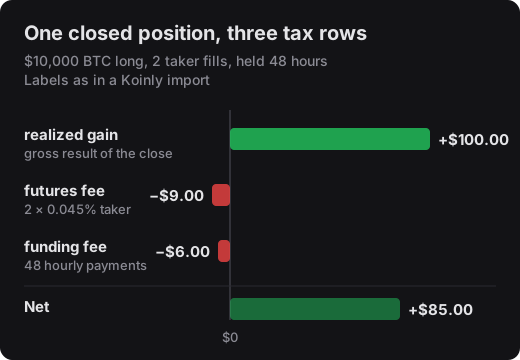
The split matters. If you import only the net result, the tool cannot show fees and funding as costs, and depending on your country they may be treated differently from the trading result. If you import the net result and the fees, the fees count twice.
Three ways to get the data out
1. Connect the wallet in your tax tool
Several tax tools read Hyperliquid by wallet address, without an API key: Koinly, CoinLedger, CoinTracker, Awaken and KoinX. This is the least work when it covers everything.
Check the edges before you rely on it. Koinly's help page says its Hyperliquid sync covers up to 10,000 transactions per wallet, and with hourly funding an active trader reaches that quickly. Koinly's public feedback board lists TWAP orders that were not imported. Compare the tool's realized result for one month against your own records before you file.
2. Export it yourself from the public API
Hyperliquid's info API returns the fills (userFillsByTime) and funding payments (userFunding) of any address, with no key and no signature. Our guide on exporting your Hyperliquid trade history shows the requests. You get raw fills, not positions: grouping fills into closed positions, adding up fees per position and assigning each hourly funding payment to the position that paid it is spreadsheet work you do yourself.
3. Export from PerpLog
PerpLog's Hyperliquid trading journal reads the same public data from your wallet address, groups the fills into trades and assigns funding to the trade that held the position. The tax export (Pro plan) writes the closed trades of one year as a Koinly CSV or a Blockpit Excel file, with the gross result, fees and funding on their own rows, in USDC and UTC. For an accountant there is also a plain CSV with one line per trade (gross result, fees and funding side by side, in USDC and euros) and a PDF with the yearly totals in euros and the net result of every trade.
Two limits, so you know them up front. Fees and funding are dated at the trade's close, not per payment, so funding of a position held across New Year lands in the year the position closed. And PerpLog exports trades only; deposits and withdrawals still come from your wallet import.
Mistakes that make the numbers wrong
Importing the same trades twice. If your tax tool already syncs the wallet and you also upload a file, every trade counts twice. Use one source for trades. If you upload a newer file later, delete the old import first.
Netting fees into the result. A net-only row hides your costs, and a net row plus fee rows counts the fees twice. Import gross plus costs.
Missing funding. On Hyperliquid, funding is not part of the fill history. A tool or spreadsheet that reads only fills misses it.
Missing the USDC history. In a test upload to Koinly, a wallet whose USDC balance was not imported showed perp profits as gains with zero cost basis. Import the deposits too, so the tool knows where the margin came from.
Liquidations. Koinly, Blockpit and CoinTracking have no separate label for a liquidation. A liquidation is a closing fill with a (usually negative) realized result and a fee, and it belongs in the same rows as any other close.
Check your numbers before you file
Before you import anything, see what your wallet's closed trades add up to. The Hyperliquid wallet check shows the gross result, fees, net funding and the net PnL of a public address, without an account. If your tax tool reports a very different number for the same period, look for one of the mistakes above.
Tool names, labels and import limits as of November 2026, from the linked pages and our own test uploads. Tax tools change their importers; check the current help page. This article explains data and file formats, not how any country taxes them.